General Settings (Chat Button)
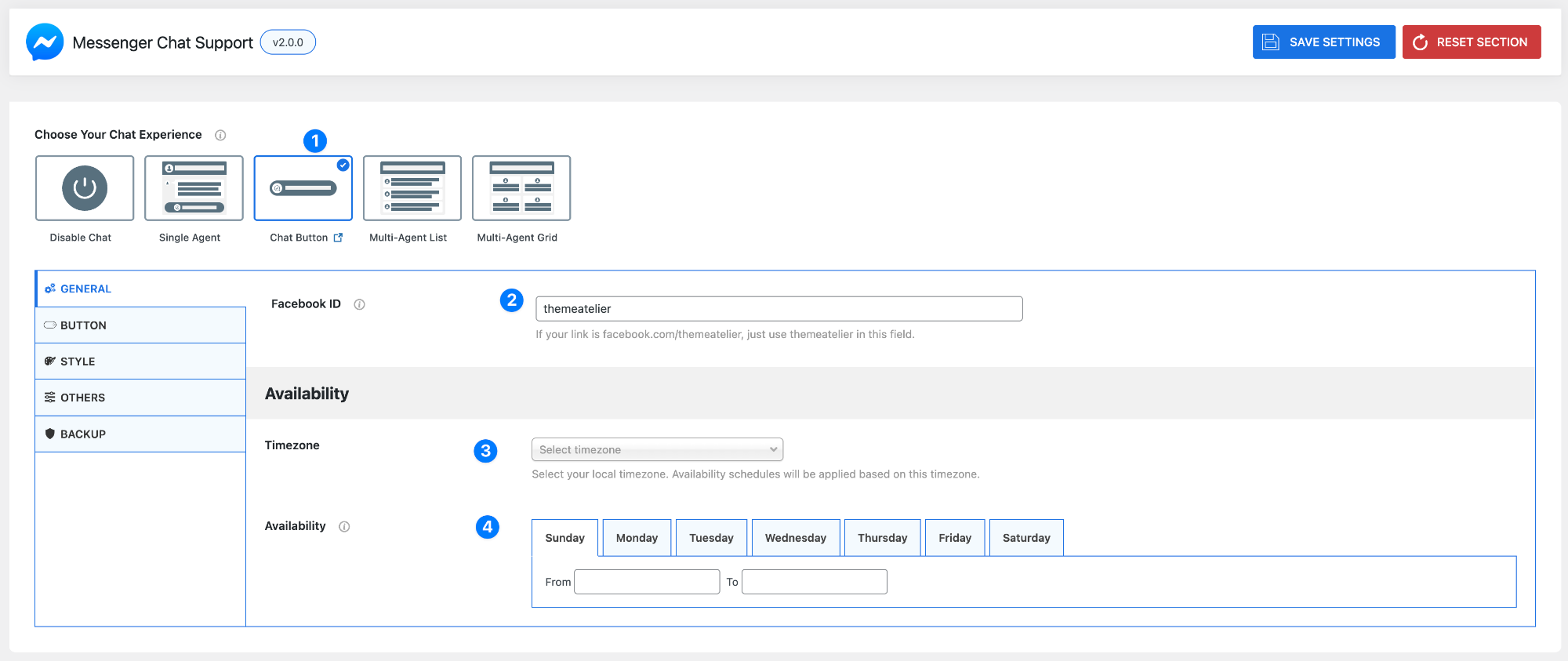
- Choose Your Chat Experience (Chat Button) – When you select Chat Button (1), a minimal floating button will appear on your site. Users can click it to open Messenger and start a conversation. This is ideal for a clean and non-intrusive chat experience.
- Facebook ID – Enter the Facebook username or page ID you want users to chat with.
- Example: If your page URL is
facebook.com/themeatelier→ enter themeatelier - Do not paste the full URL (this ensures messages go directly to your Messenger account)
- Example: If your page URL is
Availability Settings
Control when you are available to respond to messages.
- Timezone – Select your local timezone. All availability schedules will follow this setting, so make sure it reflects your actual location.
- Availability Schedule – Set your working hours for each day of the week.
- Select a day (Sunday–Saturday)
- Define From and To times
- Repeat for other days as needed
This helps visitors understand when they can expect a response.
Pro Tip
Use Chat Button if you want a simple, distraction-free experience while still allowing users to quickly reach you on Messenger.