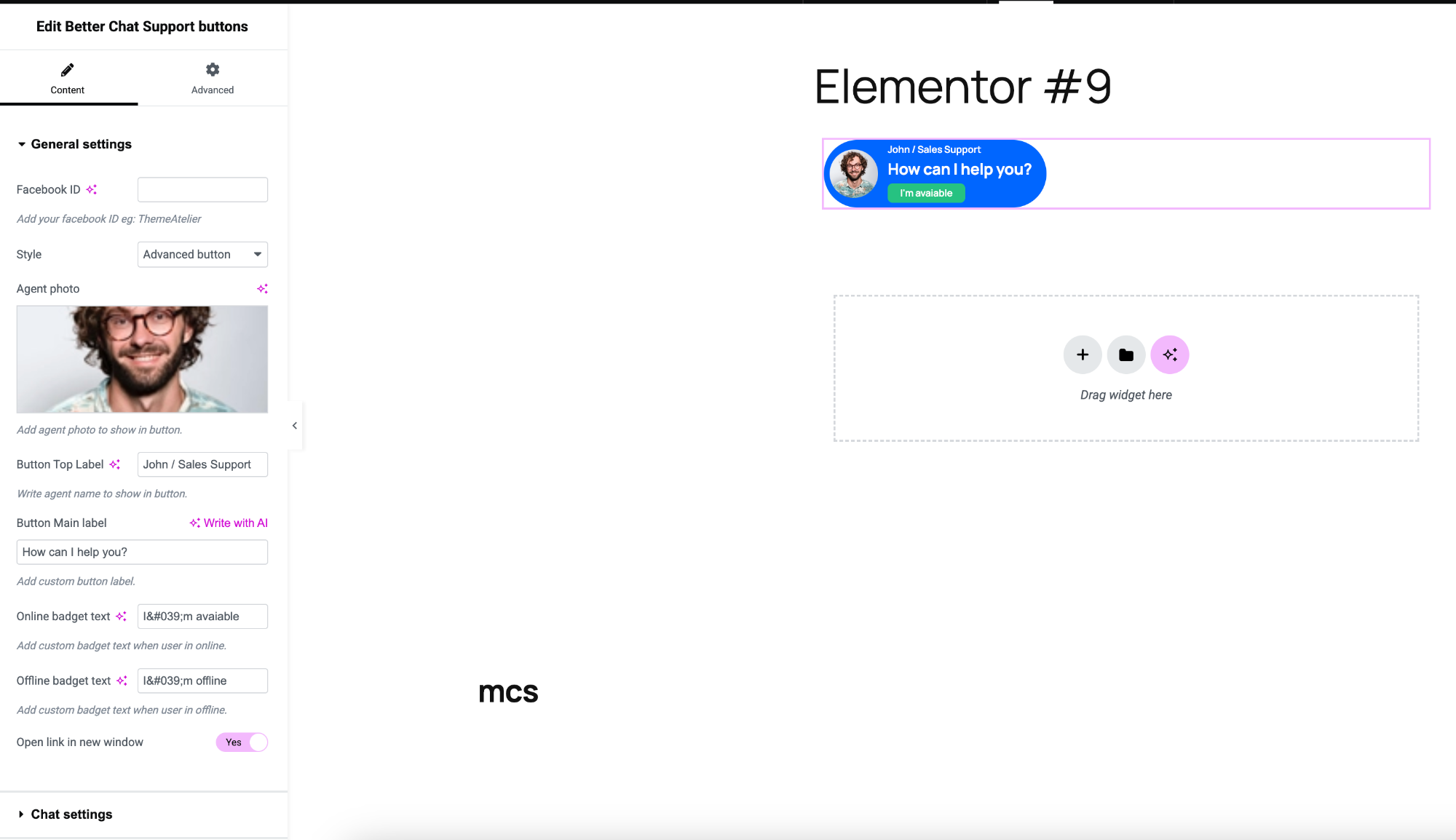
Use the Better Chat Support Button widget inside Elementor to place a Messenger chat button anywhere on your page with full design control.
General Settings
- Facebook ID – Enter your Facebook username or page ID.
- Example:
facebook.com/themeatelier→ enter themeatelier - Do not paste the full URL
- Example:
- Style – Choose the button layout style.
- Example: Advanced Button (shows agent info, labels, and status)
- Agent Photo – Upload the agent’s profile image.
- Use a clear and professional image
- Helps build trust and personalization
- Button Top Label – Text shown above the main button label.
Example: John / Sales SupportTypically used for agent name or role.
- Button Main Label – Main text displayed on the button.
Example: How can I help you?
- Online Badge Text – Text shown when the agent is available.
Example: I’m available
- Offline Badge Text – Text shown when the agent is unavailable.
Example: I’m offline
- Open Link in New Window – Enable this option to open Messenger in a new tab.
Chat Settings
- Chat Settings Panel – Configure additional chat behavior (expandable section).
- Includes options like availability, message text, and chat behavior
Pro Tip
Use the Advanced Button style with agent photo + status badge to create a more human and engaging experience, especially for sales or support pages.