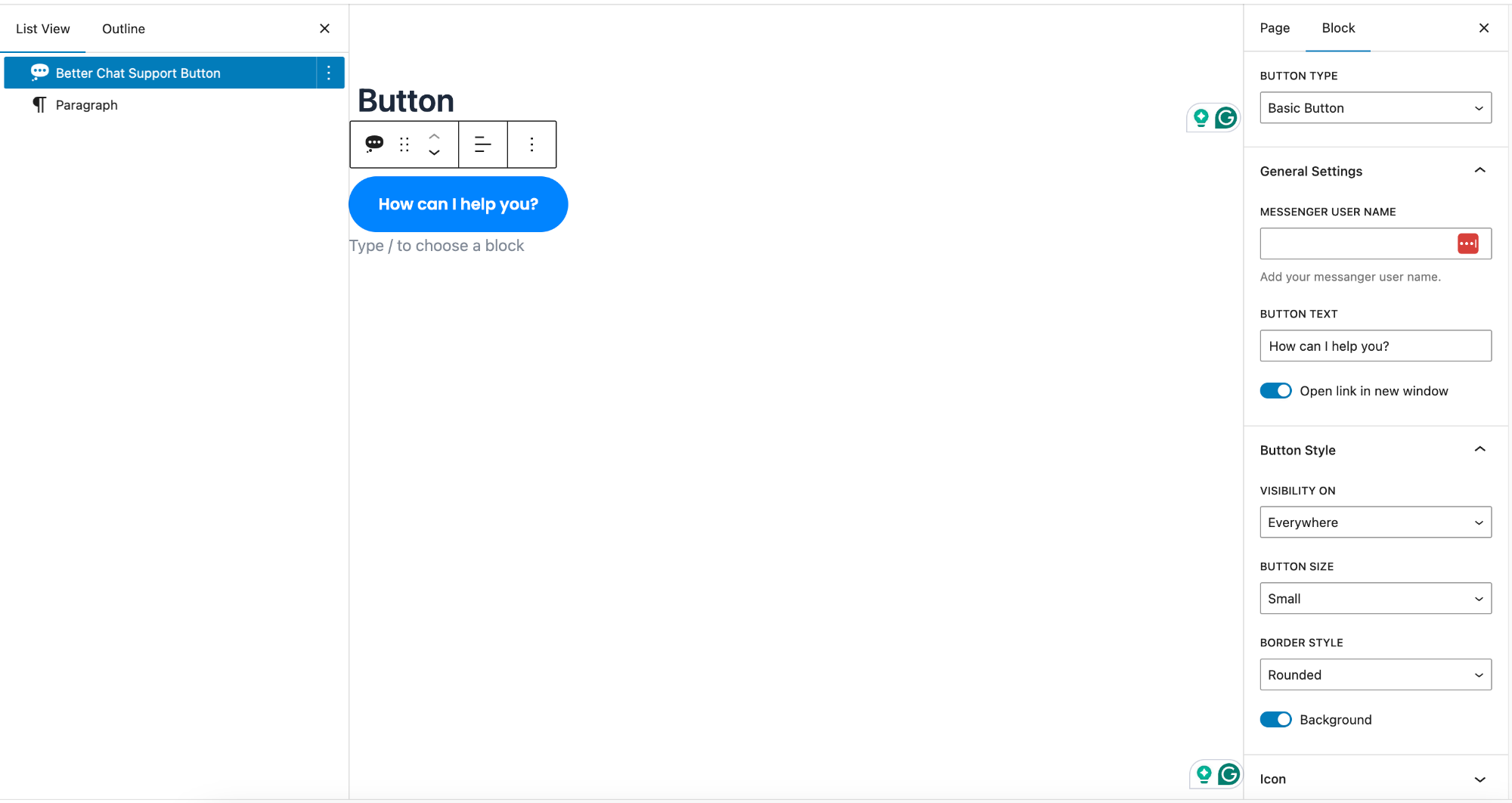
Gutenberg Block – Button
Use the Better Chat Support Button block to place a Messenger chat button anywhere inside your page or post using the Gutenberg editor.
- Button Type – Choose the button layout.
- Example: Basic Button
(Different styles may provide different layouts and features)
- Example: Basic Button
General Settings
- Messenger User Name – Enter your Facebook username or page ID.
- Example:
facebook.com/themeatelier→ enter themeatelier - Do not paste the full URL
- Example:
- Button Text – Set the text displayed on the button.
Example: How can I help you?
- Open Link in New Window – Enable this option to open Messenger in a new tab instead of the same window.
Button Style
- Visibility On – Control where the button appears.
- Everywhere
- Desktop only
- Tablet only
- Mobile only
- Button Size – Select the size of the button.
Example: Small, Medium, Large
- Border Style – Choose the shape/style of the button.
Example: Rounded
- Background – Enable or disable button background color.
Icon
- Icon Settings – Customize the button icon (if enabled).
- Choose icon type
- Adjust icon visibility and styling
Pro Tip
Use the Gutenberg block when you want full control over placement inside content, such as landing pages, blog posts, or call-to-action sections.