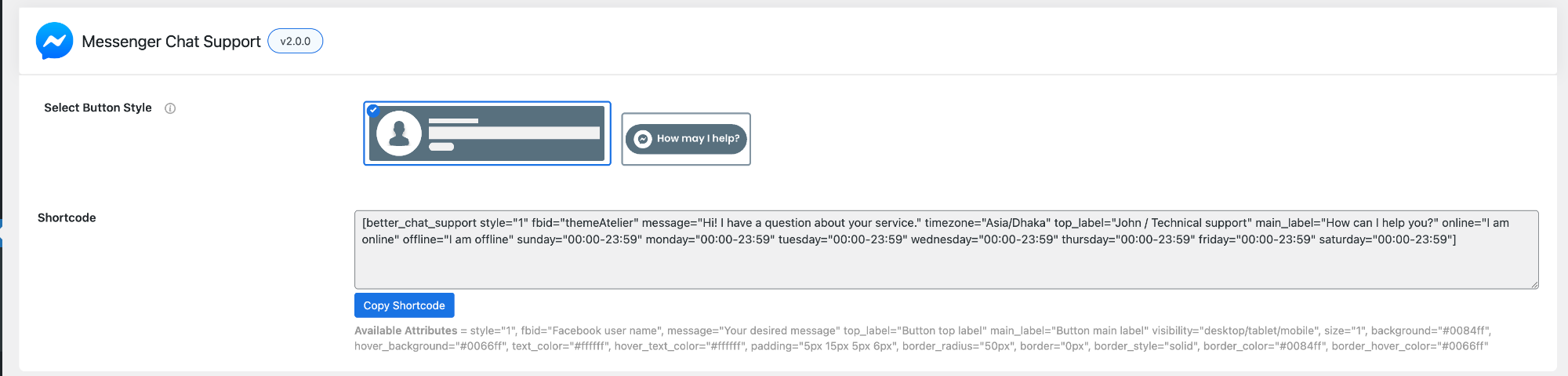
Use shortcodes to manually place the Messenger chat button anywhere on your site (posts, pages, widgets, etc.).
- Select Button Style – Choose the layout style for the shortcode button.
- Style 1 – Detailed layout with agent info and labels
- Style 2 – Compact button with simple text
- Shortcode – Copy and use the generated shortcode.
- Click Copy Shortcode
- Paste it into any page, post, or widget
This will display the Messenger chat button exactly where you place it.
Available Attributes
You can customize the shortcode by modifying its attributes:
- fbid – Facebook username or page ID
- message – Default message sent to Messenger
- label / main_label / top_label – Button text content
- timezone – Set your timezone
- online / offline – Status messages
- visibility – Control device visibility (desktop/tablet/mobile)
- size – Button size
- colors – Background, text, hover colors
- padding / border / radius – Styling options
- icon settings – Enable/disable and customize icons
Example
[better_chat_support fbid="themeatelier" message="Hi! I have a question." label="Chat with us"]
Pro Tip
Use shortcodes when you want to place chat buttons in specific locations (like inside content or landing pages) instead of using the floating button.