Button Settings
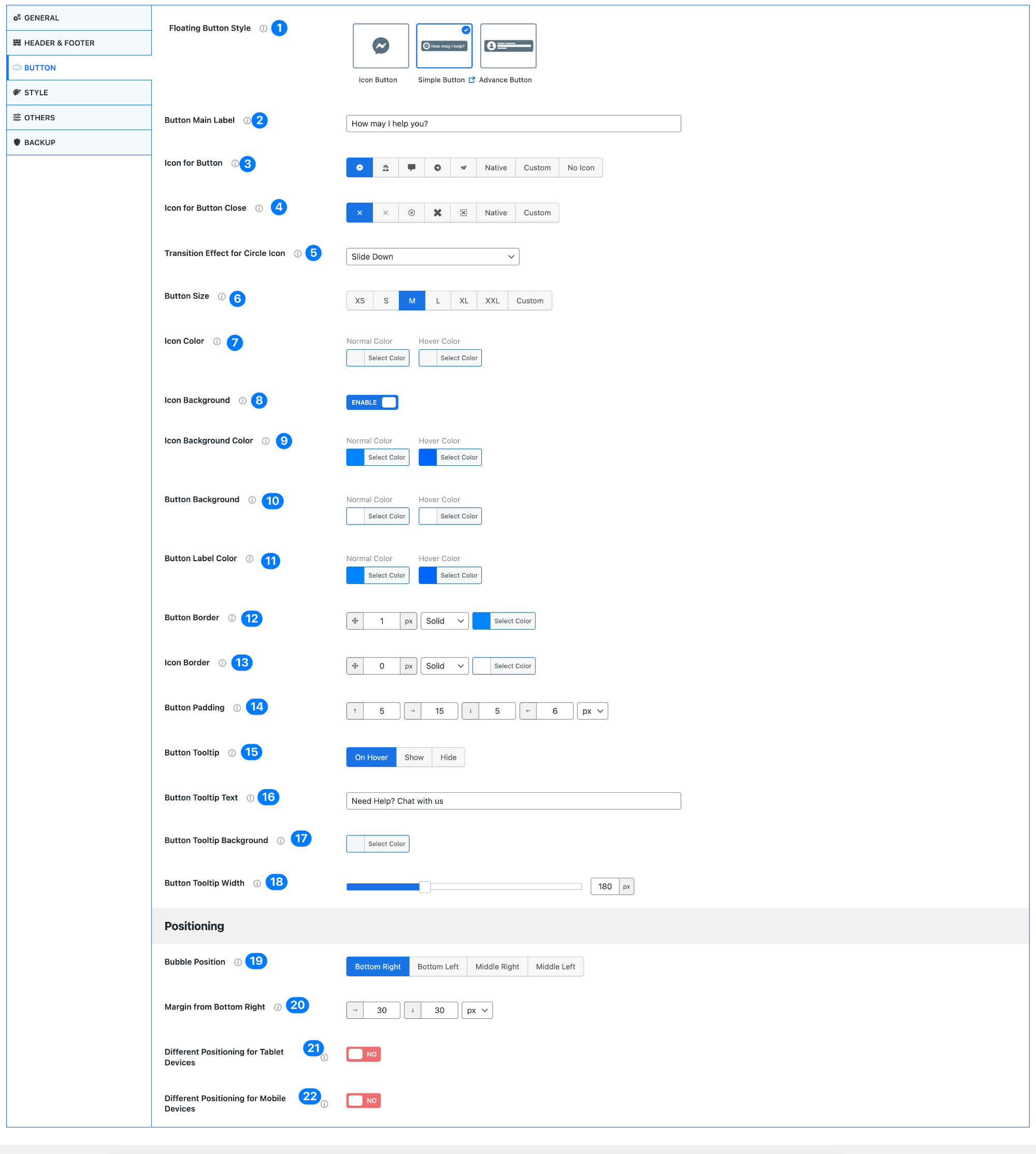
- Floating Button Style – Choose the appearance of the chat button.
- Icon Button – Only shows an icon
- Simple Button – Icon with short text
- Advance Button – More detailed layout with extended design
- Button Main Label – Set the main text shown on the button.
Example: How may I help you?
- Icon for Button – Select the icon displayed on the chat button.
- Options: Default icons, Native, Custom, or No icon
- Icon for Button Close – Choose the icon shown when the chat is open (close button).
- Transition Effect for Circle Icon – Select animation for the icon.
Example: Slide Down
- Button Size – Choose the size of the button.
Options: XS, S, M, L, XL, XXL, or Custom
- Icon Color – Set the icon color.
- Normal color
- Hover color
- Icon Background – Enable or disable background behind the icon.
- Icon Background Color – Set background color for the icon.
- Normal color
- Hover color
- Button Background – Set the button background color.
- Normal color
- Hover color
- Button Label Color – Set the text color of the button label.
- Normal color
- Hover color
- Button Border – Customize the button border.
- Width
- Style (solid, etc.)
- Color
- Icon Border – Customize the icon border.
- Width
- Style
- Color
- Button Padding – Adjust spacing inside the button (top, right, bottom, left).
- Button Tooltip – Choose how tooltip behaves.
- On Hover
- Show
- Hide
- Button Tooltip Text – Set the tooltip message.
Example: Need Help? Chat with us
- Button Tooltip Background – Set background color of the tooltip.
- Button Tooltip Width – Adjust tooltip width.
Positioning
- Bubble Position – Choose where the button appears on the screen.
- Bottom Right
- Bottom Left
- Middle Right
- Middle Left
- Margin from Bottom Right – Adjust spacing from screen edges.
- Different Positioning for Tablet Devices – Enable separate positioning for tablet screens.
- Different Positioning for Mobile Devices – Enable separate positioning for mobile screens.
Pro Tip
Use a clear label, contrasting colors, and proper positioning (usually bottom-right) to maximize visibility and clicks.